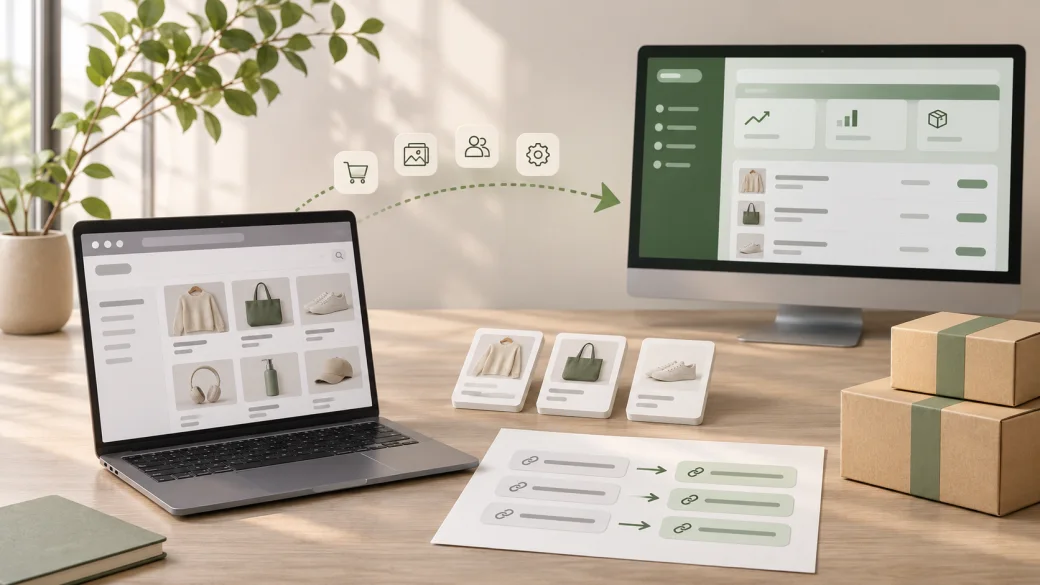
A WooCommerce store is rarely just a catalogue. It can contain years of product rules, customer history, order context, WordPress pages, plugin data, search traffic, and operational habits. Moving those parts to Shopify is a controlled change project, not a CSV upload.
The practical answer is to audit what exists, run a sample migration, map every important URL and workflow, then make cutover only after checkout and operations have passed real-world tests. Shopify's own WooCommerce migration guidance makes the gaps clear: its Store Migration app imports products and customers from WooCommerce CSV files, while historical orders, reviews, coupons, and WordPress pages or posts may need a different process or rebuilding.
This guide is for store owners, ecommerce managers, and technical leads moving specifically from WooCommerce to Shopify. It focuses on the source-platform details that are easy to miss, including WordPress content, plugin replacement, customer access, and the limits of CSV imports. If you need hands-on scoping, Zeroradius Shopify migration services can turn the inventory into a tested migration and launch plan.
WooCommerce to Shopify migration checklist
- Inventory WooCommerce products, variations, attributes, categories, customers, orders, coupons, reviews, pages, posts, media, redirects, plugins, and integrations.
- Classify each item as importable, transformable, rebuildable, archive-only, or out of scope.
- Run a sample import and reconcile record counts, product options, prices, stock, images, and customer fields before committing to a full transfer.
- Map valuable old WordPress and WooCommerce URLs to the closest new Shopify destination, then prepare permanent redirects.
- Carry over relevant metadata, structured content, internal links, canonicals, and image alt text rather than assuming theme content will transfer.
- Replace each WooCommerce plugin or custom hook with a Shopify setting, app, integration, custom build, or documented retirement decision.
- Configure payments, shipping, tax, customer accounts, policies, notifications, consent, and analytics in the destination store.
- Test customer journeys, checkout, emails, integrations, staff workflows, redirects, and reporting with clear pass or fail evidence.
- Set a content freeze, final sync plan, go or no-go owner, rollback conditions, and a post-launch monitoring schedule.
1. Audit the WooCommerce store before exporting data
Start with the source of truth, not the export button. WooCommerce product exports do not represent all WordPress content or every plugin-owned field. Build one inventory that combines WooCommerce, WordPress, the active theme, plugins, your host or CDN rules, analytics, and the systems your team uses after an order is paid.
For each product, capture the SKU, title, price, sale logic, stock, weight, dimensions, tax class, variations, attributes, images, download or subscription dependencies, and any custom fields. Record category and tag logic too. Shopify collections do not behave exactly like WooCommerce categories, so decide whether a source category becomes a manual collection, an automated collection, navigation only, or nothing.
Then inventory customers, orders, refunds, coupons, reviews, wishlists, loyalty records, subscriptions, account fields, consent records, and support data. Keep a separate list of WordPress pages, posts, media-library files, resource downloads, landing pages, and high-value URLs. A WooCommerce export alone will not capture that full picture.

2. Map fields and name the migration limitations
Create a field map before moving the complete catalogue. The useful document has a source field, destination field, transformation rule, owner, sample result, and exception note. This turns a vague promise to “migrate data” into something that can be checked.
| WooCommerce item | Shopify decision to make | Risk to test |
|---|---|---|
| Products and variations | Map attributes to product options, variants, metafields, or separate products. | Shopify's Store Migration app supports a maximum of three product options. A WooCommerce product with four or more variation attributes imports without variants through that app. |
| Customers | Match names, email, phone, addresses, tags, and any useful segmentation fields. | Customer CSV headings must match Shopify's format; WooCommerce customer exports may need preparation. Passwords do not migrate. |
| Historical orders | Decide whether to preserve them in Shopify, an external archive, or both. | Shopify does not import WooCommerce orders through a CSV. A suitable third-party migration method and support workflow need testing. |
| Coupons, reviews, pages, and posts | Recreate, import with an appropriate tool, or retire intentionally. | WooCommerce CSV migration does not cover coupons, reviews, or WordPress pages and posts in the same way as core product and customer data. |
| Plugin fields and custom code | Map to Shopify metafields, app-owned data, an integration, custom development, or removal. | Never assume a WordPress plugin setting has a one-to-one Shopify equivalent. |
Use a small, representative sample first: a simple product, a variable product, a discounted item, a product with media, a customer with an address, and a record with custom fields. Compare source and destination manually. Shopify recommends reviewing its import report after the import, and notes that imports from its Store Migration app arrive as draft products. That is useful for QA, but it is not a substitute for checking data and publication settings.
Do not treat an order-history import as proof that customer accounts are ready. Imported customers using Shopify customer accounts sign in by email and one-time verification code. If the project uses legacy customer accounts, customers need an invitation to set a new password. Write the customer communication and support response before launch.
3. Protect URLs, metadata, and organic search visibility
Start the URL map from actual evidence: a crawl, sitemap, analytics landing pages, Search Console, backlinks, paid campaign destinations, and internal-link exports. Include WooCommerce product and category URLs as well as WordPress pages and posts. Map each valuable old address to the new page that fulfils the same purpose. Do not redirect every retired page to the home page.
Shopify lets you create redirects before moving the domain and import redirects by CSV. Configure the redirect map before cutover, then test the old URL, the final destination, and the response chain. Keep new internal links pointed at the final Shopify URL rather than routing site visitors through an old address.
Preserve relevant titles, meta descriptions, headings, product descriptions, collection copy, internal links, canonical intent, structured data, and image alt text as part of the content migration. A new theme can render these elements differently, so inspect the destination pages rather than assuming an import retained them. Google's site-move guidance recommends preparing and testing the new site, setting up old-to-new redirects, and monitoring old and new URLs. It also warns that ranking fluctuations can occur while Google recrawls a move.
After launch, check Shopify's automatically generated sitemap, submit the relevant sitemap in Search Console, and review unexpected 404s, redirect errors, blocked pages, duplicate canonicals, and sharp traffic changes. A technical SEO audit before cutover can surface issues such as orphaned pages or indexability settings while they are still safe to fix.
4. Replace WooCommerce plugins and integrations deliberately
Make a plugin replacement register. For every active WooCommerce or WordPress extension, write its business purpose, data it owns, customer-facing effect, staff user, cost, dependency, and preferred Shopify replacement. The answer may be a native Shopify setting, a Shopify app, a connection through middleware, custom development, or an agreed decision to stop offering that capability.
Pay extra attention to subscriptions, bundles, product feeds, reviews, loyalty, returns, search and filters, email automation, tax, shipping labels, fulfillment, ERP, CRM, accounting, fraud, consent, and reporting. A replacement app may solve the visible feature while changing data ownership or operational steps. Test those consequences with the people who process orders and customer requests.
For data that must move between Shopify and another business system, document which system owns each field and what event updates it. Our ecommerce API integration service is relevant when stock, orders, customers, or fulfilment must remain in sync across platforms. Define retries, duplicate-event handling, reconciliation, and the owner for a failed sync before launch day.
5. Configure the new store as an operating business
A completed import is not a sellable store. Configure the settings that make the transaction and fulfilment flow work: supported payment providers, payment capture, currencies, shipping origins and zones, rates, pickup or local delivery where applicable, product tax treatment, customer-account choice, policies, notification templates, staff permissions, and fraud or order-review processes.
Rebuild analytics and marketing measurement using the supported Shopify approach, then compare a controlled test journey with the source store's reporting expectations. Visitor traffic history does not transfer into a new Shopify store, so baseline reporting and documentation matter. Avoid copying old WordPress scripts into a new theme without confirming they are still needed and supported.
Keep credentials, webhooks, API keys, and test settings separate from live values. A migration should never depend on a team member's personal login or an undocumented plugin key. Record the owner, renewal date, access level, and recovery steps for every critical integration.
6. Test the journeys customers and staff actually use
Use a test script with an expected result, actual result, evidence, and owner. Cover the combinations that matter to the store, not merely the happiest path.
- Browse navigation, search, filters, collections, product media, variant selection, stock states, pricing, promotions, and mobile layouts.
- Add products with different shipping and tax conditions, then test cart rules, discount combinations, and checkout as guest and account customers.
- Test every required payment method, including decline and cancellation paths, without using uncontrolled live charges.
- Confirm shipping rates, delivery promises, tax calculations, order confirmation, staff notifications, fulfilment handoff, refunds, and customer emails.
- Check customer account creation, one-time-code or invitation flow, address management, and support access to historical order context.
- Run integration tests for inventory, ERP, CRM, shipping, accounting, email, reviews, and analytics events, then reconcile their output.
- Open a representative sample of old URLs and prove each reaches its intended new page through one direct redirect.
Accessibility belongs in this phase as well. Check keyboard use, visible focus, labels, error messages, reading order, and responsive behavior around the product, cart, account, and checkout journeys. An imported catalogue can still be difficult to buy from.
7. Plan cutover, monitoring, and rollback before the switch
Choose a lower-risk window based on order volume, support coverage, fulfillment deadlines, and dependency availability. Define the final content freeze, final customer or product sync, domain change, redirect activation, smoke test, and communication sequence. Give one person authority to decide whether to proceed.

Set rollback conditions in advance. Examples include a failed checkout, missing critical product data, broken redirects on key entry pages, incorrect tax or shipping, an unavailable integration, or an inability to fulfil paid orders. Keep the WooCommerce store and its backups available until the new store is stable, and decide how orders or content changed during the cutover window will be reconciled if you must reverse the switch.
For the first days after launch, monitor orders, payments, checkout errors, shipping, email delivery, stock changes, integrations, analytics, 404s, redirects, and support tickets. Compare expected conversion events and order flow with actual records. A short daily review with named owners is more useful than waiting for a weekly report to reveal a broken dependency.
Common WooCommerce to Shopify migration mistakes
- Assuming CSV imports cover every record. Products and customers are only part of the store; identify order, review, coupon, content, plugin, and custom-field gaps early.
- Mapping variations too late. Resolve products with more than three option dimensions before the full import, not after stock and merchandising are live.
- Leaving customer-account communication until launch. Customers need a clear explanation if their sign-in process changes or their old password cannot be reused.
- Copying plugins by category. Choose replacements based on workflow, data ownership, compatibility, and support, not a feature-list resemblance.
- Redirecting only products. WordPress posts, pages, campaign URLs, and old category paths can all carry traffic or links.
- Testing only a successful card payment. Test declined payments, shipping variations, tax, emails, refunds, fulfillment, accounts, and integration failures.
- Having no reversible cutover plan. Keep source records, access, backups, and a defined decision point until the new workflow proves stable.
Ready to improve your Shopify store?
Get a sharper plan for Shopify growth.
Talk through theme decisions, speed issues, merchandising, product discovery, and conversion improvements with the Zeroradius team.
Have questions?
Yes. Shopify's Store Migration app can import WooCommerce product CSV files, but test a representative sample first. Shopify documents a maximum of three product options in that app; products with four or more variation attributes import without variants. Review products, images, prices, inventory, option mapping, and draft status before publishing.
No. Shopify states that customer passwords cannot be migrated. With Shopify customer accounts, imported customers sign in using their email address and a one-time verification code. A store using legacy customer accounts needs to invite imported customers to create new passwords.
Not through Shopify's CSV import. Shopify's WooCommerce migration documentation directs merchants to a third-party migration app for historical order imports. Decide whether the project needs historical orders inside Shopify, an accessible archive, or both, then test records and support workflows before committing.
Build an old-to-new URL map from your important WordPress and WooCommerce pages, implement permanent redirects to relevant destinations, preserve useful page metadata and internal links, and test the destination before cutover. After launch, monitor redirects, 404s, indexing, and traffic while search engines recrawl the changed URLs.
The timeline depends on catalogue complexity, content, variation structure, customer and order-history requirements, plugins, integrations, SEO work, and testing scope. A sample migration reveals the real effort more reliably than a page or product count alone. Avoid setting a final cutover date until the exceptions and operating requirements are understood.